Friday, July 9, 2021

Blackboard: How do I view the client side (browser) SCORM Engine log and debug data?

When you play a SCORM course, there's a lot happening behind the scenes.  And a lot of information is available in the debug log.  You might never need to see it, but it may help troubleshoot.

Blackboard's Rustici SCORM engine gives you the ability to control Debugger Options. See https://help.blackboard.com/Learn/Instructor/Original/Course_Content/Create_Content/Add_Content_Packages#edit-the-scorm-player-advanced-options_OTP-4 for details.

Here's a screenshot of the Debugger Options:

SCORM player advanced options

However, Blackboard doesn't mention HOW to get to the debug log.

Wouldn't it be nice if there was a View Debug button that displayed the debug log?  Like it does on the Rustici SCORM cloud.


Debug log opened in Rustici SCORM cloud


Blackboard seems to have hidden the View Debug button on the player's Navigation bar by default, but even when I reveal it, clicking on the button doesn't work.

On https://support.scorm.com/hc/en-us/articles/206163696-Accessing-Debug-Logs-in-SCORM-Cloud Rustici actually mentions a "super sneaky way" to access the log.


You can:

1) open the browser dev tools console

2) make sure the frame it’s referencing is the one that contains the player page (not the content)

If the courseware is launched in a secondary window, click back in the main frame of the initial window (behind the courseware popup window) – this will likely say “We launched your course in a new window...” or similar.

3) Type Debug.ShowAllAvailableData() and hit Enter. 


Browser developer console opened


This should bring up the window.

Note: be sure your browser allows pop-up windows from the site.


Rustici Engine Log window

Does it work on all browsers?

I've tested on Safari 14, Chrome 91, Firefox 89.

Note: be sure your browser allows pop-up windows from the site.

How to open developer tools?


What about in Ultra Base Navigation (UBN)?

It does work, but you have to watch out where you invoke Debug.

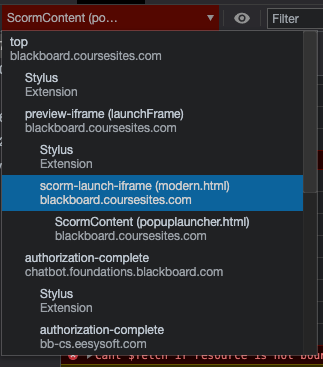
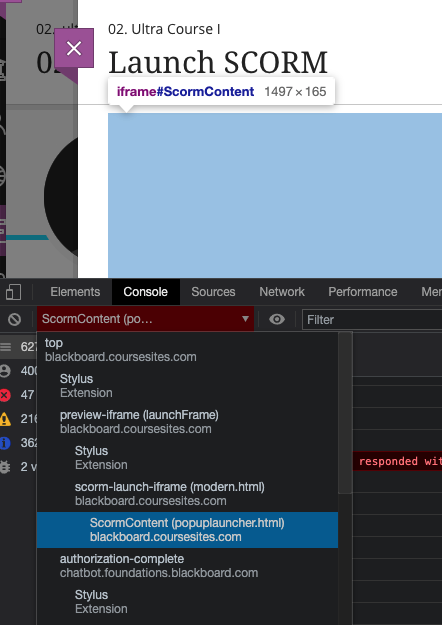
In my testing on coursesites.com, I noticed that the Console would default to ScormContent (popup-launcher.html) - the Debug does not work there.

Console showing ScormContent (popuplauncher.html)

I needed to use the pulldown and select "scorm-launch-iframe (modern.html)", then I could use the Debug.

In Console, select modern.html


Happy SCORM Debugging!

Sunday, March 22, 2020

MS Teams for Blackboard


Microsoft has created an application that allows instructors to create a Teams meeting and share that with their students. Blackboard has turned that application into an LTI Advantage tool that can be integrated with Learn. Blackboard's integration allows users to launch Microsoft Teams Meetings directly within any Learn course.

What is it?

This sentence summarizes it pretty succintly:

“We’ve enabled institutions with Microsoft Office 365 to create, schedule, and launch Microsoft Teams conference calls within Blackboard Learn. “
(from https://blog.blackboard.com/supporting-continuity-of-education-with-blackboard-learn-and-microsoft-teams/)


Requirements:


The Microsoft Teams for Blackboard integration is available in any Blackboard Learn course. Your institution needs to meet these requirements to use Microsoft Teams for Blackboard:

  • Blackboard Learn SaaS or Blackboard Learn 9.1 Q2 2019/3700, released in May 2019, or later.
  • LTI must be enabled for use in courses: Admin panel > LTI Tool Providers > Manage Global Properties. Enable LTI for course use and optionally for organization use. Select Submit.
  • Set up LTI 1.3 Tool
  • Set up REST API
And maybe one, taken for granted, you (the creator of the meeting) need to have access O365/Teams!  If you don't have Teams, this won't give it to you.

Participants DO NOT have to be in Teams to join the meeting.


Administrator Setup:


Overall, if you meet the requirements, it's pretty easy to set up following their instructions at https://help.blackboard.com/Learn/Administrator/SaaS/Integrations/Microsoft_Teams


Instructor / Student facing documentation:

  • https://help.blackboard.com/Learn/Instructor/Interact/Microsoft_Teams
  • https://help.blackboard.com/Learn/Student/Interact/Microsoft_Teams


Blackboard Learn Caveats:

  • Your meeting appears in the first Content Area of your course based on the Course Menu sequence and in your Calendar.

Example: if Information is the first Content Area, the content link will (by default) appear there. You can move it to a more appropriate Content Area.


  • The integration sets adaptive release on the item based on the start and end date/times.

Example: Date Restrictions: Display after Mar 20, 2020 7:00:00 PM, Display until Mar 20, 2020 9:00:00 PM


MS Teams Caveats:
  • The meeting becomes a Chat once you start the meeting (not when you create the meeting)
  • Participants may not have access to the Chat artifacts (files, recordings, etc) unless you add them as Teams participants.
  • As participants do not have to be in Teams, that may be more difficult to manage post-meeting
  • Since the meeting only appears in Chat you will wants to name your meeting something easy to find (you can pin it later)
  • Suggest maybe create ONE meeting for the entire semester (set broad start/end date/times) so you only have to deal with one Chat on the Teams-side
  • You may want to check with your O365 Tenant Admin as to any Chat policies (e.g., when does it get removed).


What's the difference between a Chat and a Team Channel?


From https://kb.wisc.edu/92160
Chats are typically for one-on-one or less-important group messages. 
If you wanted to ask one person or a specific group of people a question, you would create a chat. 
In general, more short-term or day-to-day conversations should go through the chat/group function rather than the team function.

Can you convert a Chat into a Team Channel?

No, but there's a suggestion you can upvote:  
https://microsoftteams.uservoice.com/forums/555103-public/suggestions/19440163-allow-group-chats-to-be-converted-into-a-team-chan 

3/24/20 Is it available on CourseSites?

Yes! 

Thursday, June 21, 2018

REST API "User"

More Blackboard vendors are moving away from native Building Blocks and WebServices to LTI and REST API.

However, the vendor can just casually ask to set up a REST API user with "administrator" privileges.

We had one REST API integration for a pilot project, where most REST API calls could be accomplished by having the REST API User an "instructor" in the course.

However, there was one REST API call that needed higher privileges.


So how we did it:

I. Find out what API call(s) need higher privileges
Vendor needed to get a particular user's course memberships.

API: /learn/api/public/v1/users/{userId}/courses


II. Determine what custom privileges necessary for the REST API call(s) 
I looked up the API call (on developer.blackboard.com)

Users can always view their own memberships. Callers viewing the memberships of another user require at least one of the following entitlements:
'system.user.course.enrollment.VIEW' allows callers to see course memberships
'system.user.org.enrollment.VIEW' allows callers to see organization memberships


Note: this is also a good time to verify that your version of Blackboard meets the minimum version to support  this particular REST API call!

III. Set up a custom privilege role set so we can assign privileges the REST API call(s) require


We have Community license, and prior experience with custom privs for school-level domain administrators. We'd already had a privilege set for these school-level domain admins to see all users.

DOMAIN_USERS Custom Privileges:

  • Administrator Panel (Users) > Users 
  • Administrator Panel (Users) > Users > Edit > View Course Enrollments 
  • Administrator Panel (Users) > Users > Edit > View Organization Enrollments 

IV. Set up (Community license) Domain for that vendor's user so we can assign custom privilege role set to it, and control scope (if necessary) 

We set up a Domain for the vendor: APP_REST_API_VENDORNAME

With Collection:

  • Users > Collection Options: Include all items 
Note: we could do a little more lock down if necessary (if there's a way to craft a course/user collection to be more targeted) ; but since this was a pilot and the REST API User was associated directly with the pilot course(s) we didn't need to do more.

V. Add REST API User as Domain Administrator w/ the custom privilege role set 

I added the REST_API_USER as domain administrator to APP_REST_API_VENDORNAME with our existing DOMAIN_USERS Custom Privileges.

VI. Test
  • Test the REST API Call(s) as the REST API User.
  • Get vendor confirmation they could make REST API call(s), and it was sufficient for their needs. 


Tuesday, April 11, 2017

Self and Peer Assessment not assigning any users to evaluate

We've encountered a few cases where the self and peer evaluation does not seem to give the students anyone to evaluate after they do their submission.

It's not affecting all courses.

After some insight from Blackboard about where this tool stores data, we did have a breakthrough.

It turns out this tool stores pretty much everything in the file system, not in the database.

To find it, you will need to know the COURSEID and the CONTENTPK1 related to the Self and Peer Assessment. Technically you don't need a database query to do it, just mouse over the assessment and look for the content= bit.

The Self and Peer Assessment tool will then store information in

 content\vi\BBLEARNorBB60\courses\1\COURSEID\content\_CONTENTPK1_1_act

This folder will contain sub-folders, and there are two that were important to us

  • submissions - all the student submissions go here into USERPK1_1 folders 
  • marking - where the evals are stored 

In this case, there's a very special file in marking called marking.txt that assigns evals to the individual students, e.g., if you have two evals per student, there should be one record for each student with two other students to eval.

The marking.txt file gets generated once, apparently at the Submission End Date and NOT at the Evaluation Start Date.

The problem occurs when the Submission End Date is extended after the original date has passed. The marking.txt doesn't get re-generated at the new Submission End Date.

Thus, any students who submitted during the extension period are not counted in the marking.txt, and those students will have no one to evaluate.

You can check this by looking at the date of the marking.txt, and then checking the dates on the submissions folder for that particular user pk1.  If the user has submitted after the marking.txt was created, they are out of luck.

The workaround we came up with:

1) delete the original marking\marking.txt related to the assessment

2) re-trigger the evaluation process via Course Tools > Self and Peer Assessment > assessment name > View Evaluations

This should generate a new marking.txt which should now contain all submitters to date.

IMHO, this should only be done PRIOR to Evaluation period because you are telling Bb to re-assign evaluations.  I doubt you'd want to do this after evals have started, and some have already evaluated...
----
Addendum: the marking.txt can get prematurely generated if the instructor loads the "View Evaluations" page at any point during the submission period. It will create the marking.txt file and populate with whomever has submitted up to that point (Thanks Tim @ UBC)

Friday, August 14, 2015

Reverse Engineering the Raw Results of a Multiple Answer Question

I had occasion recently to obtain assessment results out of a recovered database.  One question type that was a bit puzzling was the Multiple Answer where the Answers were randomized to the student.

Say I created a question:

When the student took the test, the answers were randomized, e.g.,


When I extracted the results, I got a data string like


Useful bits:
  • answer_order: 0, 3, 4, 1, 2 (the order answers were displayed to the student); note: the ordinal position is 0.
  • sequence of response_values (the actual selections)
  • score_value: 0.0 (what the student auto-scored)
Question: 

Does the sequence of response_values corresponded to the original order of answers in the question, or the order of answers displayed to the student?

Answer:

It is corresponds to the original order of answers in the question.

Deeper...

The question had five answers
  • 3 - position 0
  • 4 - position 1
  • 5 - position 2
  • 6 - position 3
  • 9 - position 4
The question was displayed to the student
  • a. 3 = position 0
  • b. 6 = position 3
  • c. 9 = position 4
  • d. 4 = position 1
  • e. 5 = position 2
That corresponds to the answer order


The student selected a. 3, b. 6, c. 9

That corresponds to the sequence


and so on.

Finally, the student received a score of 0 (in my example, they had to get all the multiple answers correct, no partial credit)


Wednesday, September 17, 2014

pushconfig without starting tomcat services

Saw this question on BBADMIN-L mailing list which had a useful tip from the community:

Does anyone know if it's possible to run a pushconfig but not start the tomcat processes? I need to do several patches that require a pushconfig but I don't want to wait for the servers to startup and shutdown.

Answers

Nick (MSJC): Sure in the pushconfigupdates.bat\sh and pushconfigupdates.bat\sh.bb files just comment out the line that calls services.start. 


Miroslav (CSU Chico): Yes. You just need to comment out the starting part out of the script. We do this regularly after each release pack upgrade. Simply edit pushconfig and comment out the part that tells it to start the app node. We also usually change the text so it says NOT STARTING at the end.
This needs to be an option when upgrading as well. We pretty much never want the system to start up immediately after upgrade finishes.

Friday, August 15, 2014

IMS LTI Launch Test

IMS LTI Launch Test


The prior IMS LTI test site I was using (see my older blog post) no longer seemed to work.

I found a new one thanks to the JISC-funded ceLTIc (http://www.celtic-project.org/)

There are two ways you can use IMS LTI in Blackboard:

  • Using Oscelot Basic LTI tool
  • Using Blackboard's IMS LTI Tool Provider

I've included both ways to add the IMS LTI tool.

I. Using Oscelot Basic LTI tool

1. Install and configure Oscelot Basic LTI 

 2. Register New Tool

  1. Go to System Administration tab
  2. then  Basic LTI tools (under the Tools section)
  3. click on Register New Tool
  4. Enter
    • Name: IMS LTI Launch Test
    • Launch URL: http://ltiapps.net/test/tp.php
    • Consumer Key: jisc.ac.uk
    • Shared Secret: secret 
  5. Submit
Should look like

After Register New Tool


3. Edit Data Settings for this new tool

  1. Select Edit data settings (pull-down) for this new toolname
  2. Enter
    • Context ID: Check
    • Value to use for Context ID: Database key (default)
    • Context sourceId: Check
    • Context Title: Check
    • User ID: Required by tool
    • Value to use for user ID: Batch UID (default)
    • SourceId: Check
    • User name: Required by tool
    • Email: Required by tool
    • Role Mappings:
      • Instructor to Instructor
      • Student to Learner
      • Teaching Assistant to Instructor (or Teaching Assistant)
  3. Submit
Should look like: 
After Data Settings

4. Edit Launch Settings for this new tool

  1. Select Edit launch settings (pull-down) for this new toolname
  2. Enter
    • Open tool in: select New window
  3. Submit
Should look like:

5. Enable the tool and configure how to display it

  1. Pulldown by toolname, choose Enable
  2. Pulldown by toolname, choose Add as course tool
  3. Checkbox the toolname, choose Display on Menu: Tools
After enabling the tool and configuring of Display on Menu

II. Using Blackboard's IMS LTI Tool Provider


Blackboard has had Basic LTI support since 9.1SP4.

1. Register Provider Domain

  1. Go to System Administration tab
  2. then Building Blocks
  3. then LTI Tool Providers
  4. Click on Register Provider Domain
  5. Enter
    • Provider domain: ltiapps.net
    • Provider Domain Status: Approved
    • Default Configuration: Set separately for each link
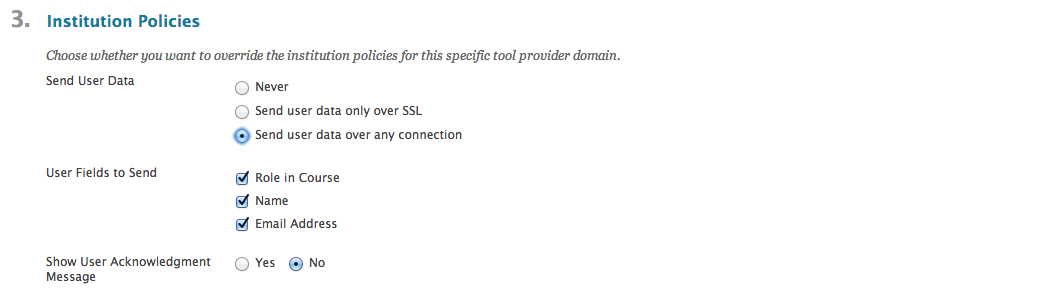
    • Send User Data: Send user data only over any connection (note: I'd prefer over SSL)
      • User Fields To Send
      • Role in Course: check
      • Name: check
      • Email Address: check
  6. Submit
Should look like


After Provider is Registered


3. Set up Tool Placement

  1. Click on the '0' under Placements for the row of the provider (ltiapps.net)
  2. Create Placement
  3. Enter
    • Label: IMS LTI Launch Test
    • Handle: imsltilaunchtest
    • Type: Student Tool (for simplicity)
    • Tool Provider URL: http://ltiapps.net/test/tp.php
    • Tool Provider Key: jisc.ac.uk
    • Tool Provider Secret: secret
  4. Submit
Should look like:
After Placement Created


III. Now that LTI is set up we can use it in a course


1. Add tool to your course

  1. Go into your course as an Instructor
  2. Go into a content area/folder
  3. Under Tools menu, you should see the new toolname (e.g., IMS LTI Launch Test)
  4. Select the new toolname
  5. Submit
Adding LTI (e.g., IMS LTI Launch Test)  to the Course
After LTI (e.g., IMS LTI Launch Test) added to Course


2. Test the tool (as instructor, as student)

Note: beware browser security measures, e.g., pop-up blocking, content blocking (since we're loading an insecure page)
  1. Click on the toolname link you added
    • If you are using the Oscelot Basic-LTI : It should open a new window
    • If you are using the Bb LTI Tool Provider : It should open in the lower frame (yeah, no choice to open in a new window)
  2. The http://ltiapps.net/test/tp.php should load and display various POST parameters
Oscelot Basic-LTI Launch should look like:
Bb LTI Tool Provider Launch should look like:


Friday, June 14, 2013

Content Editor and WIRIS supports LaTeX in 9.1SP12

Blackboard 9.1SP12's Content Editor comes with revised WIRIS plugin which no longer requires Java.
Here's an example where I have the LaTeX formula for the Quadratic Equation in the Content Editor.  The LaTeX formula is delineated with the "$$"


Note: currently the Content Editor > Preview does not render the equation.  So the only way to tell that the equation is correct is to submit your changes, then view the resulting item.

Tuesday, March 19, 2013

Copy/Paste when using the Content Editor with Firefox


There's a security setting in Firefox that prevents javascript-based HTML editors from accessing your clipboard.

There's a workaround using a Firefox add-on called AllowClipboard Helper https://addons.mozilla.org/en-us/firefox/addon/allowclipboard-helper/

Some documentation written by Ottawa University:
http://onl.ottawa.edu/documentation/student/docs/How-to-fix-copypaste-issue-content-editor.pdf

MozillaZine:
http://kb.mozillazine.org/Granting_JavaScript_access_to_the_clipboard


Monday, July 2, 2012

Wishlist/Enhancements to 9.1SP8 cross-listing/merge enrollments


I'm coming up with a list of enhancements we'd like to see for the current 9.1SP8 cross-listing/merge enrollments feature.  We're coming from the Bb Section Merge Tool (SMT), so some of it comes from features we've used there.

Administrative/System-level
  • Allow instructors to create the merge 
  • Allow one-to-many feeds (e.g., one source site could be the child of multiple target sites) 
  • Document some migration path between the SMT and the new course merge 
  • Instructors > My Courses module should indent the child sites (and allow for expansion/collapse) or allow child sites to be hidden completely from view 

Course-level
  • Tools that communicate with students (Announcements, Messages, Send Email) should be able to use Child Course membership to select audience 
  • Adaptive Release should be able to use Child Course membership 
  • Groups should be able to use Child Course membership when creating groups 
  • Grade Center / SmartViews - allow criteria Child Course ID condition "is blank" or "does not contain" (which is useful if you are merging enrollments into section 01 for instance, and want a smartview of section 01) 

Before I submit, I wanted to see if anyone else had things on their wish list...

Friday, June 8, 2012

Restricting User Access

Every so often, we get an official request to restrict a user from some portion of Blackboard.

Some questions we need to ask:

  • how urgent is this request?
  • what is the scope of the restriction?
  • is the restriction permanent (e.g., someone leaves the University) or possible needs to be reversed in the future?
  • what course roles does this user have in the affected Course/Org(s)?
  • does the user still need (or have the right) to get into other Course/Org(s)?
  • do we need to retain course records for that user (e.g., submissions, discussions, grades)?
  • does the user have special roles in Blackboard that give them extra functionality?
  • and - in our case - will the user retain a valid University login id (e.g., has not been revoked/disabled)?
Some methods for restricting access:

1. Making them unavailable in Course/ Org(s) via Course > Control Panel > Users & Groups > Users > Change Users Availability in Course


2.  Remove them from Course/Org(s) via Course > Control Panel > Users & Groups > Users > Remove Users from Course


3. Making them unavailable via Admin GUI > Users > Select User > Make Unavailable


4. Using snapshot to change their USER ID  in Blackboard so it mismatches their University ID (e.g., userid -> userid_disabled)

5. Deleting their USER ID via Admin GUI > Users

There are Pros and Cons to each, and so one or more methods may be used.  We should look at those in more detail...


Thursday, May 10, 2012

NETBIOS over TCP and certain Building Block load times

We were investigating why certain 3rd party Building Blocks took a long time to load screens (10+ seconds). This occurred with EvaluationKit and Internships.com B2s.  This was consistent in our development and production environments.

When we analyzed the packet traffic, we saw that Windows Server was making several (pointless) NBSTAT name queries for certain Hosts related to those Building Blocks.

Wireshark - when doing GET /webapps/bbgs-internships_integration-bb_bb60/app/ssoUserTool


We tested
1 - adding Windows etc hosts entries for the Hosts
2 - disabling the default NETBIOS over TCP

Both had the same positive results: much faster load times for those particular Building Blocks.

Has anyone else encountered this issue with Building Blocks and Bb (Windows Server)?

Update:


  • We did get confirmation of other Bb Schools encountering the same performance issue with the Building Blocks
  • We have tested disabling the NETBIOS over TCP on our development/test systems, and are moving forward with deploying the change to  in production with this change.

Tuesday, March 13, 2012

Blackboard Best Practices with Tests

Some links to other Bb Institutions who've written about best practices when working with tests.

If you have others, please share!

Wednesday, February 15, 2012

SuperUser Building Blocks

Note: Review was done in March 2011.

Sakai had the super-user ability where admins could become another person. Typically they use this to investigate student issues (to see what they see).

There are at least two community-developed building blocks that would give similar functionality in Blackboard:


Impersonate (v1.0.12)
  • More restrictive permissions. Impersonate can only be done by Systems Administrators, not just anyone with access to the system administration page.
  • Permissions are now appropriate to the needs of the block.
  • Taglibs consistently use bbNG.
  • Simple logging of impersonation to Tomcat stdout.

My Findings:
  • shows up in Admin tab >  Tools and Utilities
  • restricted to System Administrators, so can't be easily given out 
LoginAs (v2.0.0 - to work with 9.1SP4 or later):

This building block allows the administrator to create a valid session as a different user. For the purpose of validating portal customizations or troubleshooting administrators often use multiple accounts to access the system. This method allows the preserve the original password. Access can be granted by Institutional Role, System Role, or Course Membership. It is a parallel to the Unix su command. It effectively allows to impersonate another user. Logging in as system administrators can disallowed in settings.

My Findings:

  • Shows up in under the Admin tab > Tools and Utilities
  • Can be restricted to an Institutional Role (e.g., I created a Institutional Role called DOMAIN_LOGINAS) also says you can use system roles: System Administrator, System Support, Account Administrator
Note: did not seem to pick up domain admin roles, e.g., if I assigned the Institutional Role DOMAIN_LOGINAS to a domain admin, the building block did not pick it up.

  • Can additionally be restricted by Course ID (e.g., membership in a particular course)
In addition to using Roles you can use course membership. Enroll users in a specific course as students and provide Course ID here. Also works for Orgs (if you have Community).

If users do not have access to the Admin tab, but should have access to LoginAs simply provide access to this url in a course or organization: The LoginAs direct URL

Note: In conversation with Syzmon (developer), he recommended using the course membership over the role.  His intention is to simplify the access to courses only in the future (this way basic license clients are covered).  The option will continue to prohibit login as an administrator type account.

  • Disallow LoginAs to a System Adminitrator level user (NOTE: DEFAULT IS NO, WHICH MEANS YOU CAN BECOME ADMINISTRATOR)
You can use the Yes string to prevent users from possible privilege escalation activity.
Recommend setting it to Yes. Then if you try to become Administrator, you get "Request denied. Authentication requested for System Administrator: administrator"

  • Simple logging to Tomcat logs. It makes it difficult to then easily find out who logged in as whom.

bb-access.log would show entries like:

123.456.789.10 - _2_1 [05/Aug/2011:10:30:50 -0400] "GET 
/webapps/grcc-LoginAs-bb_bb60/index.jsp?username=user2&OriginatingUser=user1
 HTTP/1.1" 200 19571 

Wednesday, November 30, 2011

9.1SP5 vs 9.1SP7 Assessment Submission Details

Note: the following changes may have occurred in 9.1SP6 but we skipped that version.

In 9.1SP5, you got very little information about when a test was started/submitted.

Here is the Grade Details screen for a student.  We can see the Date Submitted (or Saved).  But we have no indication of how long they took on the assessment (Elapsed Time).  This has been an issue when a student has a problem on a timed test, and the instructor wants to know how much "extra time" to give a re-take.


If you go into the attempt, you have very little Test Information.


Now, in 9.1 SP7, we have the start (Date Created) and submission time on the Grade Details screen.

And, if you go into the attempt, and look at the Test Information, you have Time Elapsed, Started Date and Submitted Date.


Monday, September 26, 2011

Generating sessions

I needed a way to generate 1000+ sessions in the Bb sessions table in development. However, development doesn't garner that many active users. I hit upon using webdav to generate sessions via curl. Here's a simple bash script to do so. Assumption is there's at least one userid you have the password for.

for i in {1..1000};
do echo $i; 
curl 'https://bbserver/bbcswebdav/users/userid' -u userid:pw ; 
done

Monday, July 11, 2011

Yahoo Pipe for BbWorld tweets

I set up a Yahoo Pipe to aggregate the various phrases for BbWorld (bbworld, bbworld11, devcon11, bbcollab2011). It also filters out entries with the word "blackberry" (as that's the other common #bbworld).


http://pipes.yahoo.com/pipes/pipe.info?_id=bd193c390fbb87682b90e69a22559f7b

It is a bit poky to get going as it has to ask search.twitter.com for data. If there's a more efficient way to aggregate multiple twitter feeds, please do tell!

Monday, June 27, 2011

Things to do in Vegas

In preparation for BbWorld 11, some links that I found for things to do in Las Vegas if you don't gamble.


Any other suggestions?

Thursday, June 9, 2011

MathJax and VTBE Experiments

Our faculty are interested in putting equations into Blackboard. However, the current equation editor is old and flaky (works for some browsers, not for others). I heard from other schools about MathJax (http://www.mathjax.org) and started to play with it.

The easiest way to use MathJax is to link directly to the MathJax distributed network service (see Using the MathJax CDN). In that case, there is no need to install MathJax yourself, and you can begin using MathJax right away.

The only thing is you need to have a bit of script tag in each of your pages:

<script type="text/javascript"
src="http://cdn.mathjax.org/mathjax/latest/MathJax.js?config=TeX-AMS-MML_HTMLorMML">
</script>

I had the inspiration to throw that snippet into the googleAnalyticsSnippet.vm (see http://iangoh99.blogspot.com/2011/04/google-analytics-90sp5-91sp4.html)

That took care of including the script.

I took some of the TeX examples (see http://www.mathjax.org/demos/tex-samples/) and added them in via the VTBE.

To keep the VTBE from mucking with all the special characters like "{" "}":
* Turn the Text Editor OFF
* Choose "Plain Text"

And then cut-and-paste the TeX examples, e.g., Lorentz Equations

\begin{aligned}
\dot{x} & = \sigma(y-x) \\
\dot{y} & = \rho x - y - xz \\
\dot{z} & = -\beta z + xy
\end{aligned}

What it looks like in the VTBE:


Results:


Here is an example where I put MathJax TeX into a Test question. (Added 06/13/2011)


Here is an example where I put MathJax TeX into a Discussion post. (Added 06/13/2011)

What I typed:


Results:


Notes:

* I initially had trouble with some of the examples not showing (e.g., just seeing raw code), then it occurred to me that the examples that worked started and ended with

\begin{aligned}
:
\end{aligned}

so I added those to the non-working TeX examples and presto, they appeared properly.

* MathML examples - were not working for me, maybe conflicting with the VTBE's inherent handling of MathML (part of the built-in equation editor)

* Security concerns - including someone else's javascript in all your Bb JSP pages needs quite a level of trust. You can install MathJax locally on your server, and that's prob. where we'd be experimenting next. (And, it'd be friendlier to the MathJax CDN!)

Friday, May 27, 2011

Group File Exchange; Bb8 -> Bb9 missing link name

Just ran into an issue with trying to restore Group File Exchange files from a Bb8 archive. After the restore the file was there, but filename was not being displayed in the Bb9 Group File Exchange UI. There's no link to "click" on.

In Bb8.0SP5 Hotfix2, Group File Exchange:


In Bb9.1SP5, after restoring the Bb8 archive:


I tracked it down to a difference between how Bb8 and Bb9 added files.

In Bb8 (8.0SP5 Hotfix 2), when you add the file to the Group File Exchange, the name was optional. So link name could be blank.


In Bb9 (9.1SP5), when you add the file to the Group File Exchange, the name is required. So link name can never be blank.


The Bb9 Group File Exchange UI expects a link name, so when it is blank it displays nothing there.

The fix I did was to update the bb_bb60.dbo.files table

update [bb_bb60].[dbo].[files]
set link_name = file_name
where link_name = '' and file_name != '' and file_action='LINK'

Once I did that, I could see the links in the Group File Exchange UI.